
What a Claude Code skill is
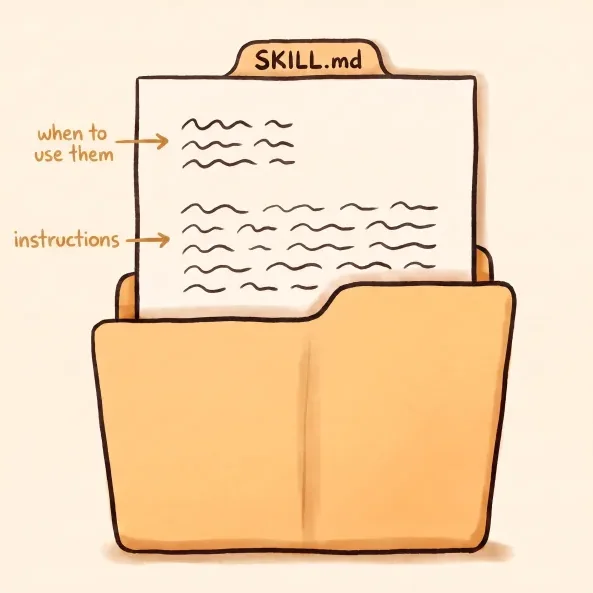
A skill is a folder of written instructions that Claude Code, an AI agent that works with your files, reads when you ask for a kind of task. Inside is a text file called SKILL.md, with the steps and a short description that tells Claude when to use them.
According to the Claude Code documentation, Claude uses a skill when it is relevant to what you ask, and you can also call it yourself with a slash and its name.
Skills are kept in the .claude/skills folder of your project or your user account. Each one loads only when it is used, so you can keep many.
Skills and MCP connections are not the same thing
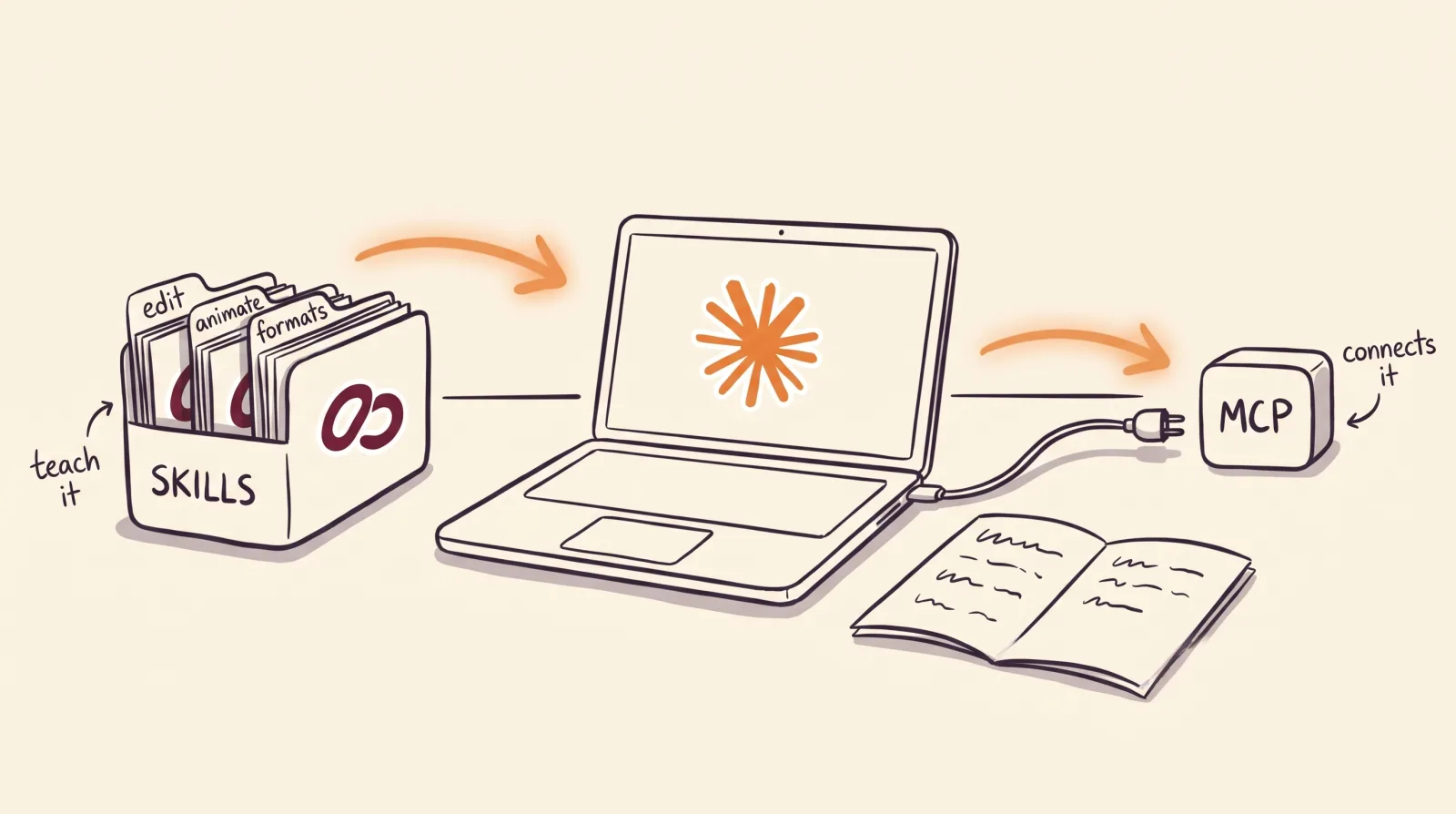
A skill is instructions: it tells the agent how to do something. An MCP connection is a link between the agent and an outside service, such as your account on a video platform, so it can use that service's tools and read your data. One brings the method and the other the access.
That is why several products ship both. Tella puts it this way on its page: the MCP connects your agents to Tella, and skills teach them how to edit. In EditorBrain, the MCP connection delivers the same instructions as the skills. Connect your account and there are no files to install.
What to look for in a video-editing skill
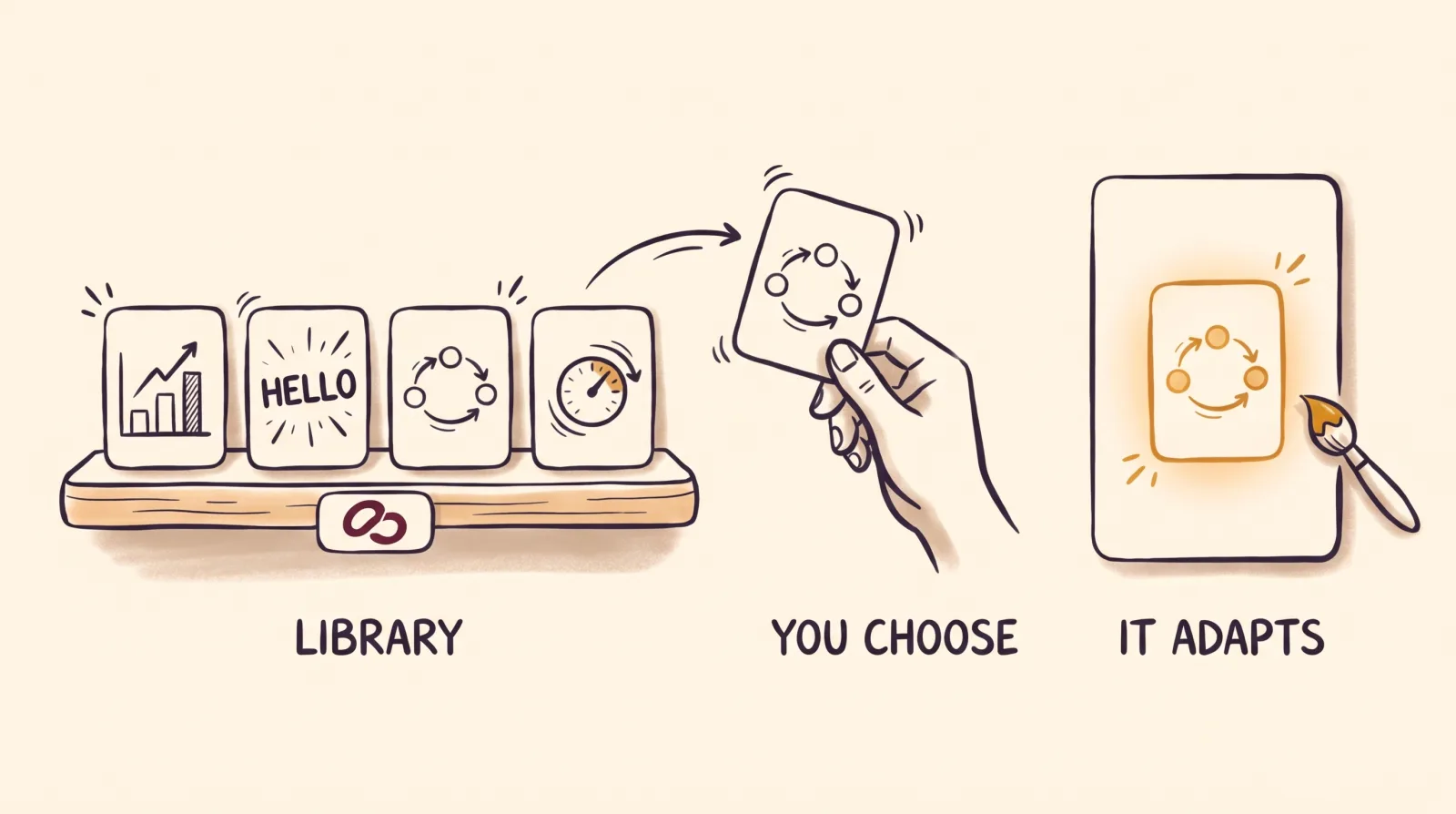
Look at three things. The first is whether it brings references or only commands. A command skill teaches the agent to drive a program: cut, join, export. That helps, but it does not decide why to cut there. A skill with references gives it real edits to draw pacing, structure and devices from.
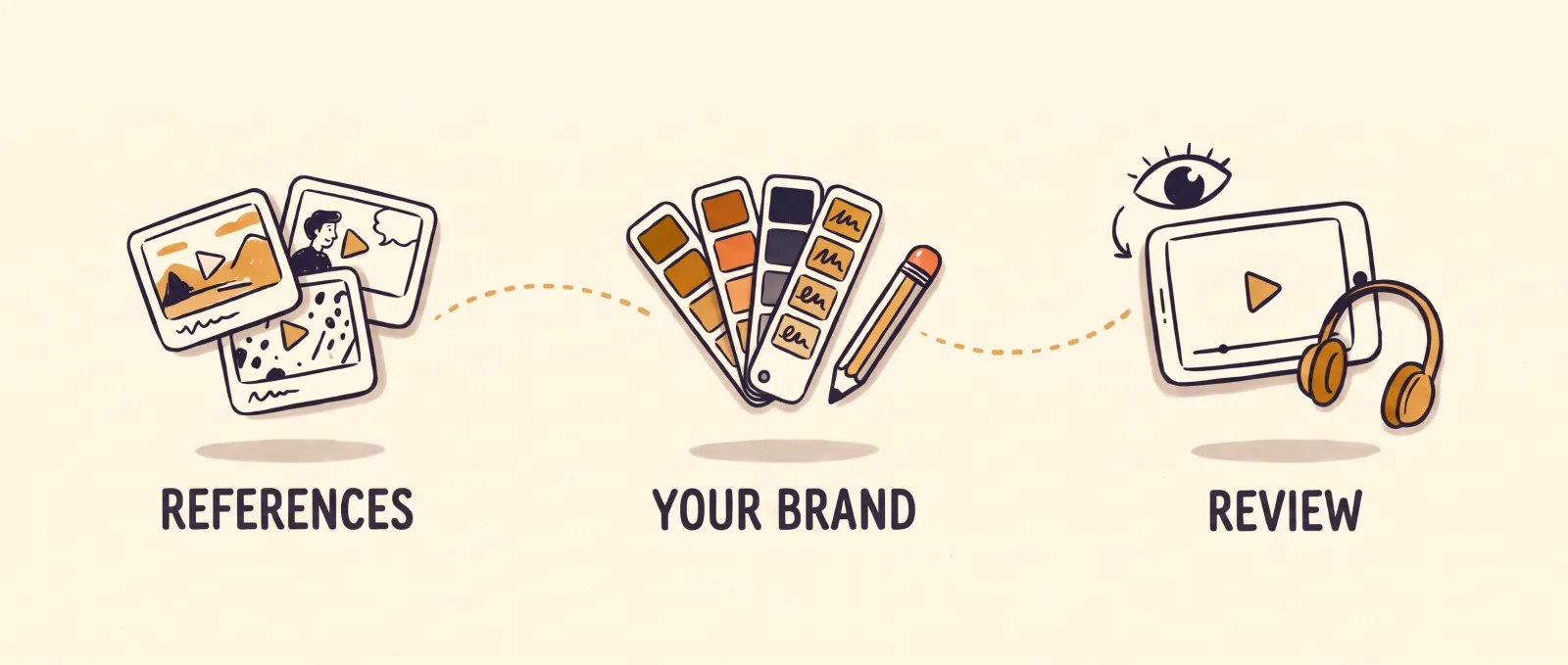
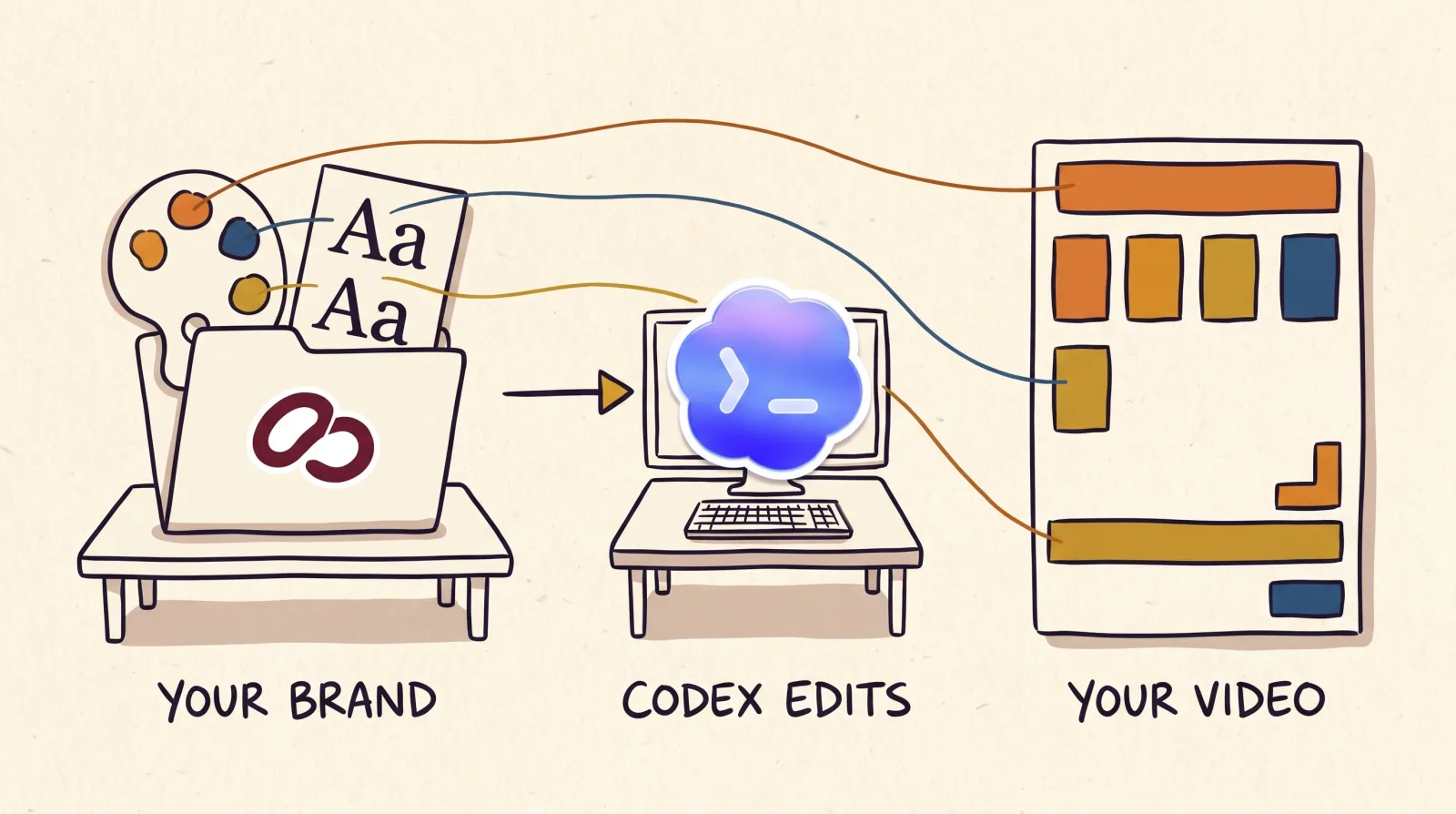
The second is whether it knows your brand. Without your colors, fonts and preferences, every video comes out looking different and you repeat the same corrections.
The third is whether it reviews the result. A complete skill asks the agent to watch and listen to the file it exported, not to trust the plan. Before installing it, open its SKILL.md: it is plain text and says which accounts, credits or programs it needs.
The three official EditorBrain skills
EditorBrain publishes three skills that work together. They need an EditorBrain account, which has a free plan, because the editing references, the 335 animations, the sound effects and your brand live there. The skill tells the agent how to look them up, and the agent edits with tools on your computer.
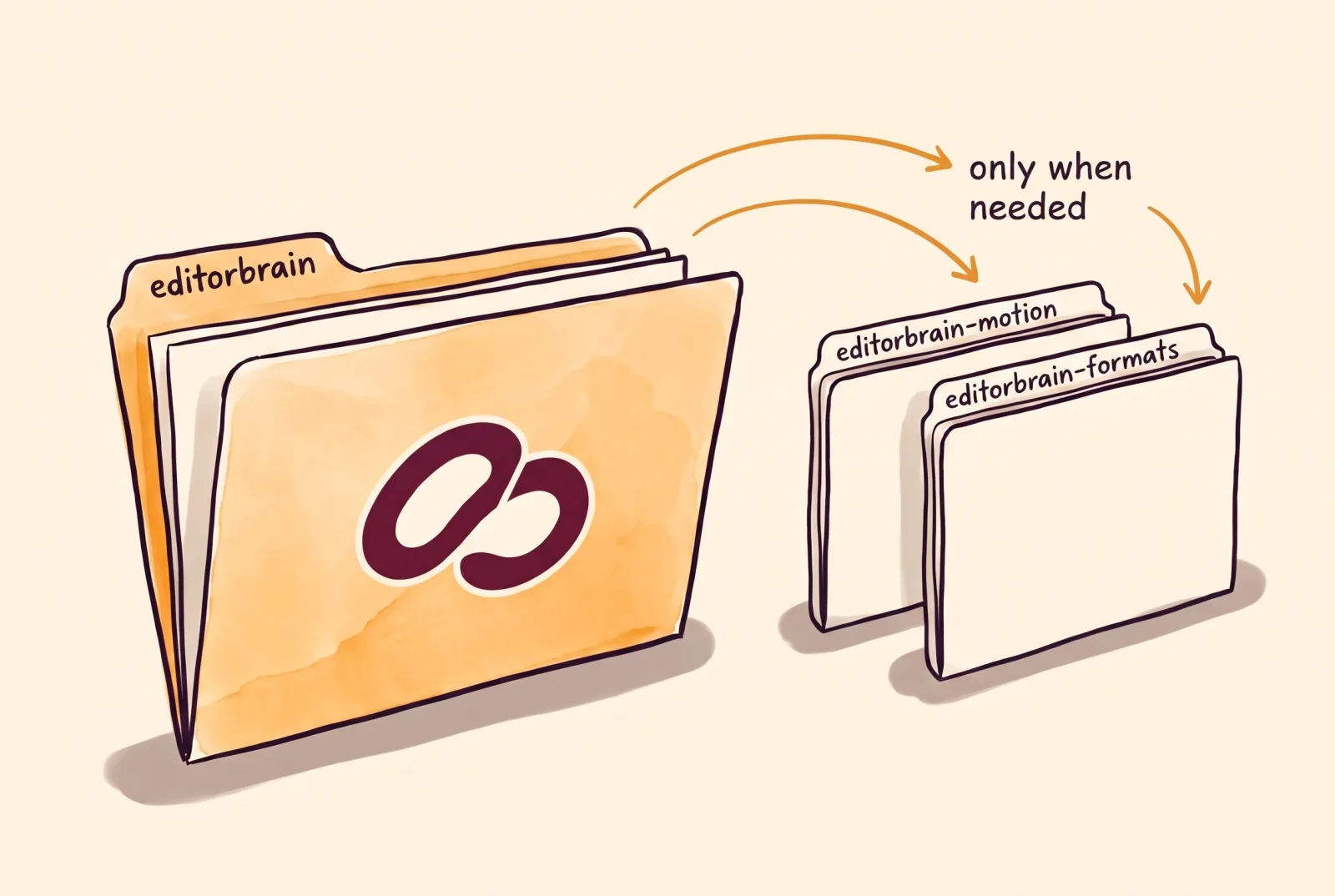
The main skill loads the other two only when needed. It also tells the agent what to do with your corrections: save them as project notes and ask before turning one into a rule for your brand.
| Skill | When it is used | What it teaches the agent |
|---|---|---|
| editorbrain | In any edit, new or resumed. | Inspect your footage, adapt a style, prepare captions, sound or motion, use your tools, record your corrections and deliver a reviewed version. |
| editorbrain-motion | When a scene needs animation. | Create or refine motion graphics, kinetic type and diagrams that respect your identity, and review the actual motion. Ordinary cuts do not need it. |
| editorbrain-formats | When the video follows a recognizable structure. | Reproduce the structure of a format, such as a numbered tutorial or a tier list: the order of the beats, the sync with the voice and the pacing. The identity comes from your brand, not from the format. |
How to install the EditorBrain skills, with or without a terminal
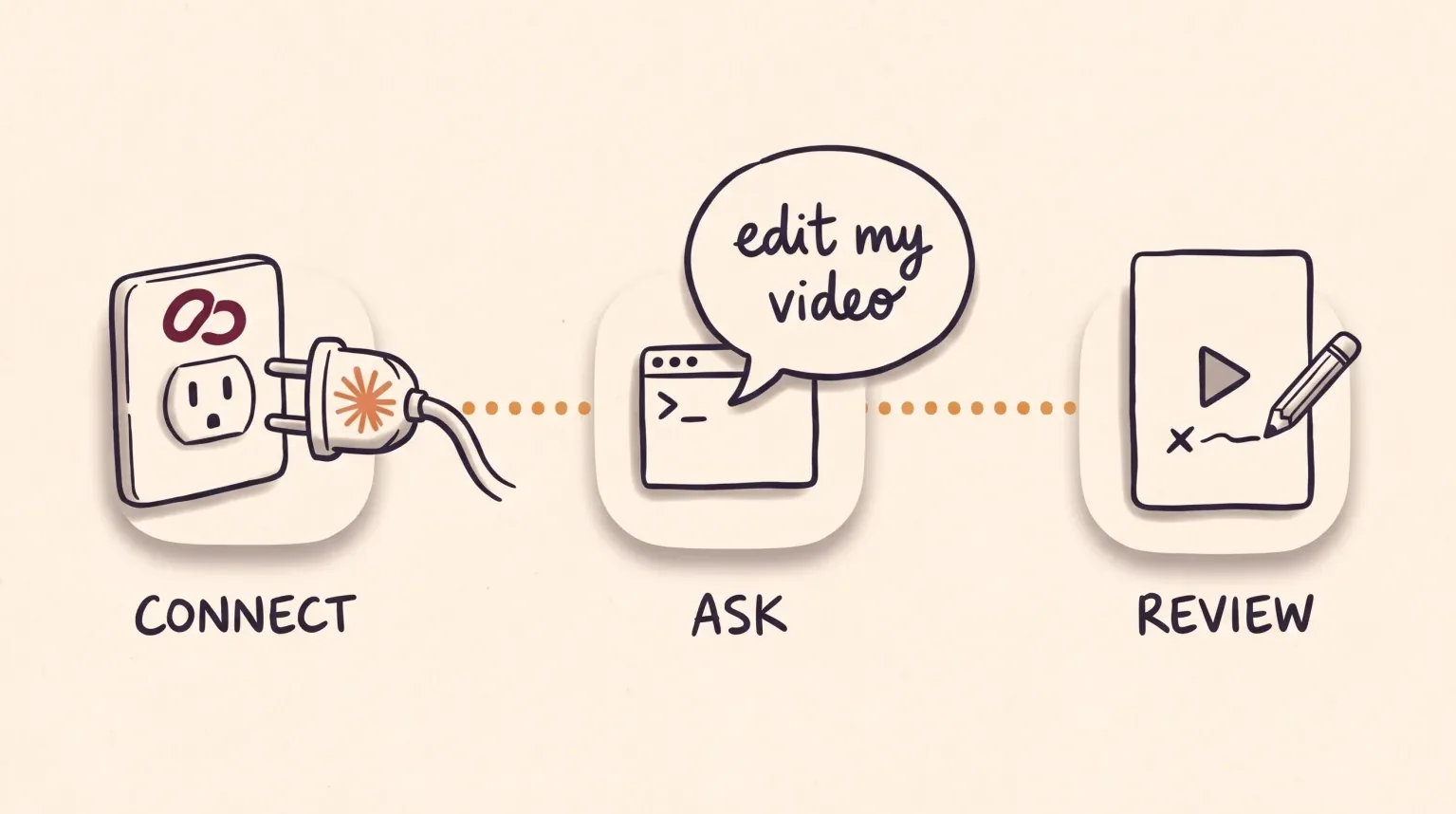
The simplest route uses no terminal, the window where you type commands. In the Claude app, open Connectors, add a custom one named EditorBrain and paste the address https://api.editorbrain.com/mcp. Sign in and authorize your workspace. You install no files: the agent receives the same instructions the skills carry.
If you use Claude Code, the command route is a plugin, a package you install from inside Claude Code. It adds the three skills and sets up the connection. Type the two commands below into its chat. The plugin lives in a public repository, an online folder anyone can inspect: https://github.com/santmun/editorbrain-skills.
The third route is the official installer, which also works for Codex. From your video folder, run npx editorbrain@latest setup in the terminal. It authorizes your account in the browser, installs the skills there and sets up the connection. It needs the Node.js program, version 22 or newer. If you already connected EditorBrain another way, keep only one connection.
/plugin marketplace add santmun/editorbrain-skills
/plugin install editorbrain@editorbrainCreate your EditorBrain account and complete onboarding, where you save your colors, fonts and editing preferences.
Type the two commands inside Claude Code, one at a time.
Type /mcp, choose editorbrain and sign in to authorize your workspace.
Check that it worked: ask the agent which EditorBrain workspace is connected. It should answer with the name of yours.
Your first edit: an example
With the skills in place, ask for the video in plain sentences. Open your recording folder with your agent and state the format, the length, the idea and what cannot be lost. You do not have to name each skill.
Here the agent loads the formats skill for the numbered steps and the motion skill for the titles. For cuts and captions, the main skill is enough.
Use EditorBrain to edit this recording into a vertical tutorial of about 60 seconds.
Show how I plan my week in three numbered steps and close by inviting people to follow me.
Keep the demonstration of each step and animate each step title in my brand colors.
Suggest a direction with references before producing the first preview.The agent reads the main skill, reviews your whole recording and checks your brand and your preferences.
It searches the EditorBrain library for editing references and proposes a direction.
It cuts the footage, prepares captions if you want them and loads the formats and motion skills for the numbered steps and their titles.
It exports a preview, reviews the actual file and shows it to you on a review page.
You correct it by naming the moment: “At 00:12 the text covers my face. Move it up and leave the cuts, the voice and the colors as they are.”
Skills published by other video tools
EditorBrain is not the only product with skills. Opus Clip publishes a skill package with install instructions for Claude Code and Codex, among others, which works with an API key for its service, meaning an access code. Tella offers a Claude Code plugin that includes its MCP server and its editing skills. Remotion is a tool for making videos with code, and it maintains the Remotion skills, which hold best practices for working in Remotion projects.
Each one teaches the agent to use its own product. If you already use one of them, start with its skill.
Common questions
What is the best Claude Code skill for video editing?
There is no single best one: it depends on what your agent is missing. If it already knows what you want and only needs to drive a program, a command skill is enough. If you want it to choose pacing, structure and devices from real edits and to respect your brand, look for one that brings references and a review of the result.
Do I have to install the skills if I already connected EditorBrain in Claude?
No. The EditorBrain connection hands the agent the same instructions as the skills, in parts and when it needs them. To edit videos on your computer, the agent does need access to those files, which Claude Code and Codex have. Installing the skills is an option for people who work that way.
Are Remotion skills the same as EditorBrain skills?
No. Remotion skills hold best practices for working in Remotion projects, where videos are made with code. The EditorBrain skills teach the agent to edit your recording with references, your brand and a review of the result. Each one teaches the agent to use its own product.
Do the EditorBrain skills also work in Codex?
Yes. The official installer accepts Codex as the agent and puts the skills in the folder Codex reads. The plugin commands in this guide are for Claude Code. Your Claude or Codex subscription is paid separately.
Sources
Facts about other products come from their own official pages, read on November 16, 2026. Prices and limits change; check the vendor's page before deciding.